AaronAli.ca

Azure Cloud Developer Training

☰ Describe Azure App Service key components and value

Azure App Service

Azure App Service is a cloud-based platform for hosting web applications, REST APIs, and mobile backends. It supports a variety of programming languages and frameworks, and allows for easy scaling and deployment.

☰ Key Features

☰ Built-in Auto Scale Support

Scale up or down to match changing demands, with automatic scaling of resources such as cores and RAM.

Autoscaling

☰ Types of Scaling

There are two main ways that an application can scale:

  • Vertical scaling, also called scaling up and down, means to change the capacity of a resource.
  • Horizontal scaling, also called scaling out and in, means adding or removing instances of a resource.

☰ Autoscaling Components

An autoscaling strategy typically involves the following components:

  • Instrumentation and monitoring systems at the application, service, and infrastructure levels.
  • Decision-making logic evaluates live usage metrics against predefined thresholds or schedules and decides whether to scale.
  • Components and mechanisms perform the scaling action.
  • Testing, monitoring, and tuning capabilities for the autoscaling strategy.

☰ Configure Autoscaling for an Azure Solution

Azure provides built-in autoscaling for most compute options.

  • Azure virtual machines autoscale via virtual machine scale sets.
  • Azure Service Fabric supports autoscaling through virtual machine scale sets.
  • Azure App Service has built-in autoscaling.
  • Azure Functions automatically allocates compute power when your code runs.

☰ Custom Autoscaling Solution

A custom autoscaling solution can sometimes be useful. For example, you could use Azure Diagnostics and application-based metrics, along with custom code to monitor and export the application metrics.

However, a custom solution isn't simple to implement and should be considered only if none of the previous approaches can fulfill your requirements.

☰ Best Practices

Use the built-in autoscaling features of the platform if they meet your requirements.

If not, carefully consider whether you need more complex scaling features.

☰ Container Support

Deploy and run containerized web apps on Windows and Linux, with support for Docker Hub and Azure Container Registry.

Azure Container Services

Azure provides several container-related services, including:

  • Azure Kubernetes Service (AKS)
  • Azure Container Apps
  • Azure Red Hat OpenShift
  • Azure Container Registry
  • Azure Container Storage

☰ AKS vs Azure Container Apps

While both AKS and Azure Container Apps are services for running containerized applications on Azure, they have different use cases.

Service Description Use Case
AKS Managed Kubernetes service with direct access to Kubernetes APIs Advanced scenarios, hybrid and multicloud deployments, direct access to Kubernetes API required
Azure Container Apps Serverless, fully managed environment with event-driven architecture and automatic scaling Developers who don't want to interact with Kubernetes, building and deploying applications without managing infrastructure

☰ Azure Container Apps vs Azure Container Instances

Both services are for running containers on Azure, but they serve different purposes.

Service Description Use Case
Azure Container Apps Serverless, fully managed environment with event-driven architecture and automatic scaling Applications that need to scale based on demand, complex microservice architectures
Azure Container Instances Lower-level building block option for running containers without managing servers Running isolated containers quickly and efficiently in transient scenarios, not intended for enterprise-grade backends

☰ Pricing and Free Tiers

Azure provides monthly free amounts for several services for the first 12 months, and some services are always free.

  • AKS cluster management is always free, but you incur a charge for resources consumed by nodes.
  • Azure Container Apps is free for up to 180,000 vCPU seconds, 360,000 GiB seconds, and 2 million requests.
  • Azure Container Registry is free for the first 12 months and up to 1 Standard tier registry with 100 GB storage and 10 webhooks.
Points from Microsoft analyzed by Llama3.1 405B using IBM's ICA
https://azure.microsoft.com/en-us/products/category/containers

☰ Limitations of App Service on Linux

  • Not supported on Shared pricing tier
  • Azure portal shows only features that currently work for Linux apps
  • Higher disk latency for storage volumes

☰ App Service Environment

App Service Environment provides a fully isolated and dedicated environment for running App Service apps, with improved security at high scale.

Unlike regular App Service, App Service Environment offers dedicated compute resources and improved security features.

☰ App Service Environment Overview

An App Service Environment is an Azure App Service feature that provides a fully isolated and dedicated environment for running App Service apps securely at high scale.

☰ Benefits of App Service Environment

App Service Environments are ideal for application workloads that require:

  • High scale
  • Isolation and secure network access
  • High memory utilization
  • High requests per second (RPS)

☰ Usage Scenarios

App Service Environments have many use cases, including:

  • Internal line-of-business applications
  • Applications that need more than 30 App Service plan instances
  • Single-tenant systems to satisfy internal compliance or security requirements
  • Network-isolated application hosting
  • Multi-tier applications

☰ Dedicated Environment

An App Service Environment is a single-tenant deployment of Azure App Service that runs on your virtual network.

Applications are hosted in App Service plans, which are created in an App Service Environment.

☰ Virtual Network Support

The App Service Environment feature is a deployment of Azure App Service into a single subnet on a virtual network.

The apps in an App Service Environment don't need any features enabled to access resources on the same virtual network that the App Service Environment is in.

☰ Feature Differences

App Service Environment v3 differs from earlier versions in the following ways:

  • No networking dependencies on the customer's virtual network
  • Zone redundancy can be enabled at creation time or any time after deployment
  • Scaling is faster than with an App Service Environment v2
  • Front-end scaling adjustments are no longer required

☰ Pricing

The pricing model for App Service Environment v3 varies depending on the type of App Service Environment deployment you have.

The three pricing models are:

  • App Service Environment v3
  • Zone redundant App Service Environment v3
  • Dedicated host App Service Environment v3
Points from Microsoft analyzed by Llama3.1 405B using IBM's ICA
https://learn.microsoft.com/en-us/azure/app-service/environment/overview

☰ App Service Plans

An App Service plan defines a set of compute resources for a web app to run. One or more apps can be configured to run on the same computing resources (or in the same App Service plan).

☰ Key Features

Each App Service plan defines:

  • Operating System (Windows, Linux)
  • Region (West US, East US, etc.)
  • Number of VM instances
  • Size of VM instances (Small, Medium, Large)
  • Pricing tier (Free, Shared, Basic, Standard, Premium, PremiumV2, PremiumV3, Isolated, IsolatedV2)

☰ Pricing Tiers

The pricing tier of an App Service plan determines what App Service features you get and how much you pay for the plan. There are a few categories of pricing tiers:

  • Shared compute: Free and Shared, the two base tiers, runs an app on the same Azure VM as other App Service apps, including apps of other customers.
  • Dedicated compute: The Basic, Standard, Premium, PremiumV2, and PremiumV3 tiers run apps on dedicated Azure VMs. Only apps in the same App Service plans share the same compute resources.
  • Isolated: The Isolated and IsolatedV2 tiers run dedicated Azure VMs on dedicated Azure Virtual Networks. It provides network isolation on top of compute isolation to your apps.

☰ How Does My App Run and Scale?

In the Free and Shared tiers, an app receives CPU minutes on a shared VM instance and can't scale out. In other tiers, an app runs and scales as follows:

  • An app runs on all the VM instances configured in the App Service plan.
  • If multiple apps are in the same App Service plan, they all share the same VM instances.
  • If you have multiple deployment slots for an app, all deployment slots also run on the same VM instances.
  • If you enable diagnostic logs, perform backups, or run WebJobs, they also use CPU cycles and memory on these VM instances.

☰ What If My App Needs More Capabilities or Features?

Your App Service plan can be scaled up and down at any time. It's as simple as changing the pricing tier of the plan.

If your app is in the same App Service plan with other apps, you might want to improve the app's performance by isolating the compute resources. You can do it by moving the app into a separate App Service plan.

☰ Isolating Your App

You can potentially save money by putting multiple apps into one App Service plan. However, since apps in the same App Service plan all share the same compute resources you need to understand the capacity of the existing App Service plan and the expected load for the new app.

Isolate your app into a new App Service plan when:

  • The app is resource-intensive.
  • You want to scale the app independently from the other apps in the existing plan.
  • The app needs resource in a different geographical region.

☰ Deploy to App Service

App Service supports both automated and manual deployment. Automated deployment, or continuous deployment, is a process used to push out new features and bug fixes in a fast and repetitive pattern with minimal effect on end users.

☰ Automated Deployment

Azure supports automated deployment directly from several sources:

  • Azure DevOps Services: You can push your code to Azure DevOps Services, build your code in the cloud, run the tests, generate a release from the code, and finally, push your code to an Azure Web App.
  • GitHub: Azure supports automated deployment directly from GitHub. When you connect your GitHub repository to Azure for automated deployment, any changes you push to your production branch on GitHub are automatically deployed for you.
  • Bitbucket: With its similarities to GitHub, you can configure an automated deployment with Bitbucket.

☰ Manual Deployment

There are a few options that you can use to manually push your code to Azure:

  • Git: App Service web apps feature a Git URL that you can add as a remote repository. Pushing to the remote repository deploys your app.
  • CLI: webapp up is a feature of the az command-line interface that packages your app and deploys it. Unlike other deployment methods, az webapp up can create a new App Service web app for you.
  • Zip deploy: Use curl or a similar HTTP utility to send a ZIP of your application files to App Service.
  • FTP/S: FTP or FTPS is a traditional way of pushing your code to many hosting environments, including App Service.

☰ Use Deployment Slots

Whenever possible, use deployment slots when deploying a new production build. When using a Standard App Service Plan tier or better, you can deploy your app to a staging environment and then swap your staging and production slots.

☰ Continuously Deploy Code

If your project designates branches for testing, QA, and staging, then each of those branches should be continuously deployed to a staging slot. This allows your stakeholders to easily assess and test the deployed branch.

☰ Continuously Deploy Containers

For custom containers from Azure Container Registry or other container registries, deploy the image into a staging slot and swap into production to prevent downtime.

The automation is more complex than code deployment because you must push the image to a container registry and update the image tag on the webapp.

☰ Sidecar Containers

In Azure App Service, you can add up to nine sidecar containers for each sidecar-enabled custom container app. Sidecar containers let you deploy extra services and features to your container application without making them tightly coupled to your main application container.

For example, you can add monitoring, logging, configuration, and networking services as sidecar containers.

☰ Explore Authentication and Authorization in App Service

Azure App Service provides built-in authentication and authorization support. You can sign in users and access data by writing minimal or no code in your web app, RESTful API, mobile back end, or Azure Functions.

☰ Why Use the Built-in Authentication?

The built-in authentication feature for App Service and Azure Functions can save you time and effort by providing out-of-the-box authentication with federated identity providers, allowing you to focus on the rest of your application.

Azure App Service allows you to integrate various auth capabilities into your web app or API without implementing them yourself.

☰ Identity Providers

App Service uses federated identity, in which a third-party identity provider manages the user identities and authentication flow for you. The following identity providers are available by default:

Provider Sign-in Endpoint How-To Guidance
Microsoft Entra /.auth/login/aad App Service Microsoft Entra platform login
Facebook /.auth/login/facebook App Service Facebook login
Google /.auth/login/google App Service Google login
X /.auth/login/x App Service X login

☰ How It Works

The authentication and authorization middleware component is a feature of the platform that runs on the same VM as your application. When enabled, every incoming HTTP request passes through it before being handled by your application.

The platform middleware handles several things for your app:

  • Authenticates users and clients with the specified identity provider
  • Validates, stores, and refreshes OAuth tokens issued by the configured identity provider
  • Manages the authenticated session
  • Injects identity information into HTTP request headers

☰ Authentication Flow

The authentication flow is the same for all providers, but differs depending on whether you want to sign in with the provider's SDK.

Step Without Provider SDK With Provider SDK
Sign user in Redirects client to /.auth/login/<provider>. Client code signs user in directly with provider's SDK and receives an authentication token.
Post-authentication Provider redirects client to /.auth/login/<provider>/callback. Client code posts token from provider to /.auth/login/<provider> for validation.
Establish authenticated session App Service adds authenticated cookie to response. App Service returns its own authentication token to client code.
Serve authenticated content Client includes authentication cookie in subsequent requests (automatically handled by browser). Client code presents authentication token in X-ZUMO-AUTH header (automatically handled by Mobile Apps client SDKs).

☰ Authorization Behavior

In the Azure portal, you can configure App Service with many behaviors when an incoming request isn't authenticated.

  • Allow unauthenticated requests: This option defers authorization of unauthenticated traffic to your application code.
  • Require authentication: This option rejects any unauthenticated traffic to your application.

☰ Token Store

App Service provides a built-in token store, which is a repository of tokens that are associated with the users of your web apps, APIs, or native mobile apps.

When you enable authentication with any provider, this token store is immediately available to your app.

☰ Logging and Tracing

If you enable application logging, authentication and authorization traces are collected directly in your log files.

If you see an authentication error that you didn't expect, you can conveniently find all the details by looking in your existing application logs.

☰ Discover App Service Networking Features

By default, apps hosted in App Service are accessible directly through the internet and can reach only internet-hosted endpoints. For many applications, you need to control the inbound and outbound network traffic.

☰ Multitenant App Service Networking Features

Azure App Service is a distributed system. The roles that handle incoming HTTP or HTTPS requests are called front ends. The roles that host the customer workload are called workers.

All the roles in an App Service deployment exist in a multitenant network. Because there are many different customers in the same App Service scale unit, you can't connect the App Service network directly to your network.

Inbound Features Outbound Features
App-assigned address Hybrid Connections
Access restrictions Gateway-required virtual network integration
Service endpoints Virtual network integration
Private endpoints

☰ Inbound Use Cases

The following inbound use cases are examples of how to use App Service networking features to control traffic inbound to your app.

Inbound Use Case Feature
Support IP-based SSL needs for your app App-assigned address
Support unshared dedicated inbound address for your app App-assigned address
Restrict access to your app from a set of well-defined addresses Access restrictions

☰ Default Networking Behavior

Azure App Service scale units support many customers in each deployment. The Free and Shared SKU plans host customer workloads on multitenant workers.

The Basic and higher plans host customer workloads that are dedicated to only one App Service plan.

☰ Outbound Addresses

The worker virtual machines are broken down in large part by the App Service plans. The Free, Shared, Basic, Standard, and Premium plans all use the same worker virtual machine type.

The PremiumV2 plan uses another virtual machine type. PremiumV3 uses yet another virtual machine type.

When you change the virtual machine family, you get a different set of outbound addresses.

☰ Find Outbound IPs

To find the outbound IP addresses currently used by your app in the Azure portal, select Properties in your app's left-hand navigation.

      
        az webapp show \
          --resource-group <group_name> \
          --name <app_name> \ 
          --query outboundIpAddresses \
          --output tsv


To find all possible outbound IP addresses for your app, regardless of pricing tiers, run the following command in the Cloud Shell.

      
        az webapp show \
          --resource-group <group_name> \ 
          --name <app_name> \ 
          --query possibleOutboundIpAddresses \
          --output tsv


☰ Create a Static HTML Web App by Using Azure CLI

In this exercise, you deploy a basic HTML+CSS site to Azure App Service by using the Azure CLI az webapp up command. Next, you update the code and redeploy it by using the same command.

☰ Download the Sample App

In this section, you will download the sample app and set variables to make some of the commands easier to enter.

Clone the Sample App Repository

Run the following git command:

      
        git clone https://github.com/Azure-Samples/html-docs-hello-world.git
        cd html-docs-hello-world


Set Variables

Run the following commands to set variables to hold the resource group and app names:

      
        resourceGroup=$(az group list --query "[].{id:name}" -o tsv)
        appName=myApp


☰ Install Azure CLI

Install the Azure CLI on your local system. You can download the installer from the official Azure website.

Once installed, open a terminal or command prompt and run the following command to login to your Azure account:

      
        az login


☰ Register Microsoft.Web Namespace

Next, you need to register the Microsoft.Web namespace in your Azure subscription. This namespace is required to use Azure App Service.

Run the following command to register the namespace:

      
        az provider register --namespace Microsoft.Web


This command may take a few minutes to complete.

☰ Create a Resource Group

Next, create a resource group to hold your web app. Run the following command to create a new resource group:

      
        az group create --name myResourceGroup --location westus


Replace "myResourceGroup" with the name of your resource group, and "westus" with the location of your resource group.

☰ Create an App Service Plan

Next, create an app service plan to hold your web app. Run the following command to create a new app service plan:

      
        az appservice plan create -g myResourceGroup -n myPlan --sku FREE


Replace "myResourceGroup" with the name of your resource group, and "myPlan" with the name of your app service plan.

The `--sku FREE` option specifies that we want to use the free tier.

☰ Create the Web App

Now, create the web app by running the following command:

      
        az webapp up -g myResourceGroup -n myApp --html --plan myPlan


Replace "myResourceGroup" with the name of your resource group, "myApp" with the name of your web app, and "myPlan" with the name of your app service plan.

☰ Update and Redeploy the App

To update and redeploy the app, simply make changes to your HTML code and run the following command:

      
        az webapp up -g myResourceGroup -n myApp --html --plan myPlan


Replace "myResourceGroup" with the name of your resource group, "myApp" with the name of your web app, and "myPlan" with the name of your app service plan.

☰ Remove the App and Delete the Resource Group

When you're finished with the web app, you can remove it and delete the resource group to avoid incurring additional costs.

☰ Remove the App

Run the following command to remove the web app:

      
        az webapp delete -g myResourceGroup -n myApp


Replace "myResourceGroup" with the name of your resource group, and "myApp" with the name of your web app.

☰ Delete the App Service Plan

Run the following command to delete the app service plan:

      
        az appservice plan delete -g myResourceGroup -n myPlan


Replace "myResourceGroup" with the name of your resource group, and "myPlan" with the name of your app service plan.

☰ Delete the Resource Group

Run the following command to delete the resource group:

      
        az group delete -g myResourceGroup


Replace "myResourceGroup" with the name of your resource group.

When you run the `az group delete` command, you will be prompted to confirm the deletion. Type `y` to confirm.

☰ Create application settings that are bound to deployment slots

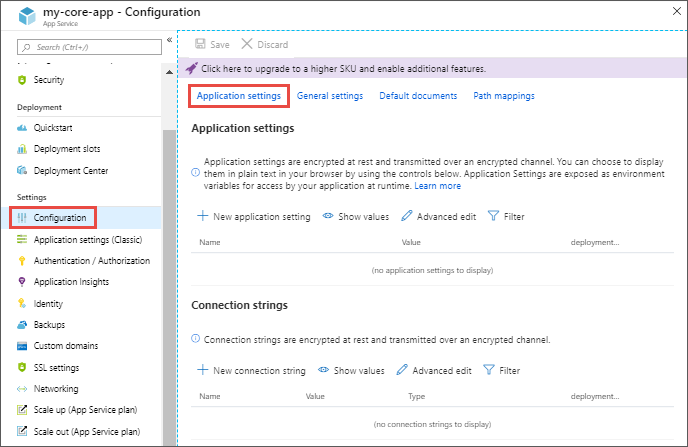
☰ Configure Application Settings

In App Service, app settings are variables passed as environment variables to the application code. For Linux apps and custom containers, App Service passes app settings to the container using the --env flag to set the environment variable in the container.

Application settings can be accessed by navigating to your app's management page and selecting Environment variables Image courtesy of Microsoft.com

☰ Adding and Editing Settings

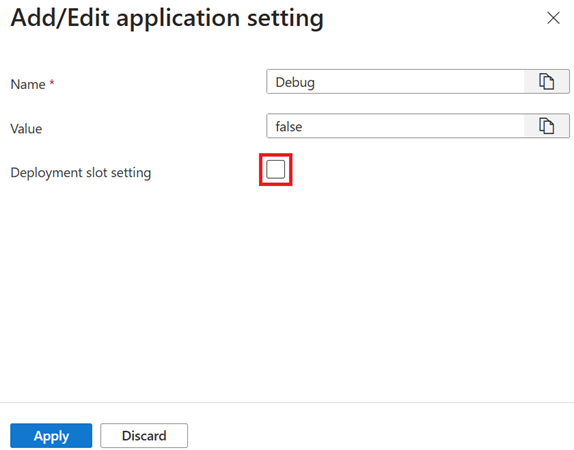
To add a new app setting, select + Add. If you're using deployment slots, you can specify if your setting is swappable or not. In the dialog, you can stick the setting to the current slot.

Specify deployment settings Image courtesy of Microsoft.com

☰ Editing Application Settings in Bulk

To add or edit app settings in bulk, select the Advanced edit button. When finished, select OK. Don't forget to select Apply back in the Environment variables page.

App settings have the following JSON formatting:

[
  {
    "name": "<key-1>",
    "value": "<value-1>",
    "slotSetting": false
  },
  {
    "name": "<key-2>",
    "value": "<value-2>",
    "slotSetting": false
  },
  ...
]

☰ Configure Connection Strings

For ASP.NET and ASP.NET Core developers, setting connection strings in App Service are like setting them in <connectionStrings> in Web.config, but the values you set in App Service override the ones in Web.config.

☰ Adding and Editing Connection Strings

Adding and editing connection strings follow the same principles as other app settings and they can also be tied to deployment slots.

An example of connection strings in JSON formatting that you would use for bulk adding or editing:

[
  {
    "name": "name-1",
    "value": "conn-string-1",
    "type": "SQLServer",
    "slotSetting": false
  },
  {
    "name": "name-2",
    "value": "conn-string-2",
    "type": "PostgreSQL",
    "slotSetting": false
  },
  ...
]

☰ Connection String Prefixes

At runtime, connection strings are available as environment variables, prefixed with the following connection types:

Connection Type Prefix
SQLServer SQLCONNSTR_
MySQL MYSQLCONNSTR_
SQLAzure SQLAZURECONNSTR_
Custom CUSTOMCONNSTR_
PostgreSQL POSTGRESQLCONNSTR_
Notification Hub NOTIFICATIONHUBCONNSTR_
Service Bus SERVICEBUSCONNSTR_
Event Hub EVENTHUBCONNSTR_
Document DB DOCDBCONNSTR_
Redis Cache REDISCACHECONNSTR_

☰ Configure Environment Variables for Custom Containers

Your custom container might use environment variables that need to be supplied externally. You can pass them in via the Cloud Shell.

In Bash:

az webapp config appsettings set --resource-group <group-name> --name <app-name> --settings key1=value1 key2=value2

In PowerShell:

Set-AzWebApp -ResourceGroupName <group-name> -Name <app-name> -AppSettings @{"DB_HOST"="myownserver.mysql.database.azure.com"}

☰ Configure General Settings

In the Configuration > General settings section, you can configure common settings for your app.

Set common configuration settings in General Settings
Image courtesy of Microsoft.com

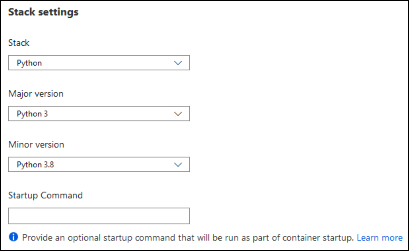
☰ Stack Settings

Configure the software stack to run your app, including the language and SDK versions.

For Linux apps and custom container apps, you can also set an optional start-up command or file.

Adjust stack settigns to meet your apps needs
Image courtesy of Microsoft.com

☰ Platform Settings

Configure settings for the hosting platform, including:

  • Platform bitness: 32-bit or 64-bit (for Windows apps only)
  • FTP state: Allow only FTPS or disable FTP altogether
  • HTTP version: Set to 2.0 to enable support for HTTPS/2 protocol

☰ Additional Settings

Configure additional settings, including:

  • Web sockets: For ASP.NET SignalR or socket.io, for example
  • Always On: Keeps the app loaded even when there's no traffic
  • ARR affinity: Ensure that the client is routed to the same instance for the life of the session
  • HTTPS Only: Redirect all HTTP traffic to HTTPS
  • Minimum TLS version: Select the minimum TLS encryption version required by your app

☰ Debugging and Security

Configure debugging and security settings, including:

  • Debugging: Enable remote debugging for ASP.NET, ASP.NET Core, or Node.js apps
  • Incoming client certificates: Require client certificates in mutual authentication

☰ Create virtual app to directory mappings

☰ Configure Path Mappings

In the Configuration > Path mappings section, you can configure handler mappings and virtual application and directory mappings.

☰ Windows Apps (Uncontainerized)

For Windows apps, you can customize the IIS handler mappings and virtual applications and directories.

Handler mappings let you add custom script processors to handle requests for specific file extensions.

Virtual applications and directories can be configured by specifying each virtual directory and its corresponding physical path relative to the website root.

☰ Adding a Custom Handler

To add a custom handler, select New handler mapping and configure the handler as follows:

  • Extension: The file extension you want to handle
  • Script processor: The absolute path of the script processor
  • Arguments: Optional command-line arguments for the script processor

☰ Linux and Containerized Apps

You can add custom storage for your containerized app by selecting New Azure Storage Mount and configuring your custom storage as follows:

  • Name: The display name
  • Configuration options: Basic or Advanced
  • Storage accounts: The storage account with the container you want
  • Storage type: Azure Blobs or Azure Files
  • Mount path: The absolute path in your container to mount the custom storage

☰ Advanced Configuration

If you select Advanced configuration, you can specify additional settings, including:

  • Storage container: The container you want
  • Share name: The file share name
  • Access key: The access key
  • Deployment slot setting: When checked, the storage mount settings also apply to deployment slots

☰ Enable Diagnostic Logging

App Service provides built-in diagnostics to assist with debugging an App Service app.

☰ Types of Logging

There are several types of logging available in App Service:

  • Application logging: Logs messages generated by your application code.
  • Web server logging: Logs raw HTTP request data in the W3C extended log file format.
  • Detailed error messages: Copies of the .html error pages that would otherwise be sent to the client browser.
  • Failed request tracing: Detailed tracing information on failed requests.
  • Deployment logging: Helps determine why a deployment failed.

☰ Enable Application Logging (Windows)

To enable application logging for Windows apps in the Azure portal:

  • Navigate to your app and select App Service logs.
  • Select On for either Application Logging (Filesystem) or Application Logging (Blob), or both.
  • Set the Level of details included in the log.
  • Select Save.

☰ Enable Application Logging (Linux/Container)

To enable application logging for Linux/container apps:

  • In App Service logs, set the Application logging option to File System.
  • Specify the disk quota for the application logs.
  • Set the number of days the logs should be retained.
  • Select Save.

☰ Enable Web Server Logging

To enable web server logging:

  • Select Storage to store logs on blob storage, or File System to store logs on the App Service file system.
  • Set the number of days the logs should be retained.
  • Select Save.

☰ Add Log Messages in Code

In your application code, use the usual logging facilities to send log messages to the application logs.

For example, in ASP.NET applications, use the System.Diagnostics.Trace class to log information to the application diagnostics log.

☰ Stream Logs

Before you stream logs in real time, enable the log type that you want.

Any information written to files ending in .txt, .log, or .htm that are stored in the /LogFiles directory is streamed by App Service.

☰ Access Log Files

If you configure the Azure Storage blobs option for a log type, you need a client tool that works with Azure Storage.

For logs stored in the App Service file system, the easiest way is to download the ZIP file in the browser.

☰ Options for installing SSL/TLS certificates for your app

Azure App Service has tools that let you create, upload, or import a private certificate or a public certificate into App Service.

☰ Options for Adding Certificates

The following options are available for adding certificates in App Service:

  • Create a free App Service managed certificate
  • Purchase an App Service certificate
  • Import a certificate from Key Vault
  • Upload a private certificate
  • Upload a public certificate

☰ Private Certificate Requirements

If you want to use a private certificate in App Service, your certificate must meet the following requirements:

  • Exported as a password-protected PFX file, encrypted using triple DES
  • Contains private key at least 2,048 bits long
  • Contains all intermediate certificates and the root certificate in the certificate chain

☰ Creating a Free Managed Certificate

The free App Service managed certificate is a turn-key solution for securing your custom DNS name in App Service.

Before you create a free managed certificate, make sure you meet the prerequisites for your app.

☰ Limitations of the Free Certificate

The free certificate comes with the following limitations:

  • Doesn't support wildcard certificates
  • Doesn't support usage as a client certificate by using certificate thumbprint
  • Doesn't support private DNS
  • Isn't exportable
  • Isn't supported in an App Service Environment (ASE)

☰ Import an App Service Certificate

If you purchase an App Service Certificate from Azure, Azure manages the following tasks:

  • Takes care of the purchase process from certificate provider
  • Performs domain verification of the certificate
  • Maintains the certificate in Azure Key Vault
  • Manages certificate renewal
  • Synchronize the certificate automatically with the imported copies in App Service apps

☰ Identifying appropriate scenarios for autoscaling

Autoscaling is a feature that allows a system to dynamically adjust its resources to match changing user demand, while keeping costs under control. Autoscaling is supported by various Azure services. To use autoscaling, you need to set up autoscale rules that define when resources should be added or removed. These rules are based on specific conditions, such as changes in user demand or resource utilization.

☰ Examine Scale Out Options

Azure App Service supports manual scaling and two options for scaling out your web apps automatically:

  • Autoscaling with Azure autoscale
  • Azure App Service automatic scaling

☰ Autoscaling with Azure Autoscale

Autoscaling makes scaling decisions based on rules that you define.

It monitors the resource metrics of a web app as it runs and detects situations where other resources are required to handle an increasing workload.

☰ Azure App Service Automatic Scaling

Automatic scaling makes scaling decisions for you based on the parameters that you select.

It monitors the load and adds instances as your web app starts receiving HTTP traffic.

☰ Key Differences Between Autoscaling and Automatic Scaling

Factor Autoscale Automatic Scaling
Available pricing tiers Standard and Up Premium V2 and Premium V3
Rule-based scaling Yes No
Schedule-based scaling Yes No
Always ready instances No Yes (minimum 1)
Prewarmed instances No Yes (default 1)
Per-app maximum No Yes

☰ When to Use Autoscaling

Autoscaling provides elasticity for your services and improves availability and fault tolerance.

Use autoscaling when you expect increased or reduced activity for a business app during holidays or other events.

☰ When to Use Automatic Scaling

Use automatic scaling when you don't want to set up autoscale rules based on resource metrics.

Use automatic scaling when you want your web apps within the same App Service Plan to scale differently and independently of each other.

☰ Scaling Out Options in Azure App Service

Azure App Service supports manual scaling and two options for scaling out your web apps automatically:

  • Autoscaling with Azure autoscale
  • Azure App Service automatic scaling

☰ Autoscaling

Autoscaling is a cloud system or process that adjusts available resources based on the current demand.

Autoscaling can be triggered according to a schedule, or by assessing whether the system is running short on resources.

☰ Azure App Service Autoscaling

Autoscaling in Azure App Service monitors the resource metrics of a web app as it runs.

Autoscaling responds to changes in the environment by adding or removing web servers and balancing the load between them.

☰ Autoscaling Rules

Autoscaling makes its decisions based on rules that you define.

A rule specifies the threshold for a metric, and triggers an autoscale event when this threshold is crossed.

☰ When to Consider Autoscaling?

Autoscaling provides elasticity for your services.

Autoscaling improves availability and fault tolerance.

☰ Limitations of Autoscaling

Autoscaling might not be an effective approach for resource-intensive processing or long-term growth.

The number of instances of a service is also a factor.

☰ Azure App Service Automatic Scaling

You enable automatic scaling for an App Service Plan and configure a range of instances for each of the web apps.

As your web app starts receiving HTTP traffic, App Service monitors the load and adds instances.

☰ Scenarios for Automatic Scaling

  • You don't want to set up autoscale rules based on resource metrics.
  • You want your web apps within the same App Service Plan to scale differently and independently of each other.
  • Your web app is connected to a database or legacy system, which may not scale as fast as the web app.

☰ Comparison of Autoscaling Options

Factor Autoscale Automatic Scaling
Available pricing tiers Standard and Up Premium V2 (P1V2, P2V2, P3V2) and Premium V3 (P0V3, P1V3, P2V3, P3V3, P1MV3, P2MV3, P3MV3, P4MV3, P5MV3)
Rule-based scaling Yes No
Schedule-based scaling Yes No
Always ready instances No Yes (minimum 1)
Prewarmed instances No Yes (default 1)
Per-app maximum No Yes
Points from Microsoft analyzed by Llama3.1 405B using IBM's ICA
https://learn.microsoft.com/en-us/training/modules/scale-apps-app-service/2-autoscale-factors
Points from Microsoft analyzed by Llama3.1 405B using IBM's ICA
https://learn.microsoft.com/en-us/training/modules/scale-apps-app-service/1-introduction

☰ Create autoscaling rules for a web app

☰ Identifying Autoscale Factors

Autoscaling enables you to specify the conditions under which a web app should be scaled out, and back in again.

Effective autoscaling ensures sufficient resources are available to handle large volumes of requests at peak times, while managing costs when the demand drops.

☰ Autoscaling and the App Service Plan

Autoscaling is a feature of the App Service Plan used by the web app.

When the web app scales out, Azure starts new instances of the hardware defined by the App Service Plan to the app.

☰ Autoscale Conditions

Azure provides two options for autoscaling:

  • Scale based on a metric
  • Scale to a specific instance count according to a schedule

☰ Metrics for Autoscale Rules

Autoscaling by metric requires that you define one or more autoscale rules.

The metrics you can monitor for a web app are:

  • CPU Percentage
  • Memory Percentage
  • Disk Queue Length
  • Http Queue Length
  • Data In
  • Data Out

☰ How an Autoscale Rule Analyzes Metrics

Autoscaling works by analyzing trends in metric values over time across all instances.

Analysis is a multi-step process.

☰ Autoscale Actions

When an autoscale rule detects that a metric crossed a threshold, it can perform an autoscale action.

An autoscale action can be scale-out or scale-in.

☰ Pairing Autoscale Rules

You should plan for scaling-in when a workload decreases.

Consider defining autoscale rules in pairs in the same autoscale condition.

☰ Combining Autoscale Rules

A single autoscale condition can contain several autoscale rules.

The autoscale rules in an autoscale condition don't have to be directly related.

☰ Enable Autoscale in App Service

Not all pricing tiers support autoscaling. The following development pricing tiers have limitations:

  • F1 and D1 tiers: Limited to a single instance
  • B1 tier: Only provides manual scaling

If you are using one of these tiers, you must scale up to:

  • S1 tier
  • Any of the P level production tiers (e.g. P1, P2, P3, etc.)

to enable autoscaling.

In this unit, you learn how to enable autoscaling, create autoscale rules, and monitor autoscaling activity.

☰ Deploy Web App via Command Line

Clone the Sample App Repository

Run the following git command:

      
        git clone https://github.com/Azure-Samples/html-docs-hello-world.git


Create a Resource Group

Run the following command:

      
        az group create --name myResourceGroup --location westus


Create an App Service Plan

Run the following command:

      
        az appservice plan create --name myAppServicePlan --resource-group myResourceGroup --location westus --sku S1


Create a Web App

Run the following command:

      
        az webapp create --name myWebApp --resource-group myResourceGroup --plan myAppServicePlan --location westus


Deploy the Web App

Run the following command:

      
        az webapp deployment slot create --name myWebApp --resource-group myResourceGroup --slot production


        az webapp deployment slot update --name myWebApp --resource-group myResourceGroup --slot production --package ./html-docs-hello-world


☰ Scale Up the App Service Plan

Run the following command:

Cost will be incurred for upgrading plan WARNING : Cost will be incurred for upgrading plan Cost will be incurred for upgrading plan
      
        az appservice plan update --name myAppServicePlan --resource-group myResourceGroup --sku S2


☰ Verify the Web App

Run the following command:

      
        az webapp show --name myWebApp --resource-group myResourceGroup --query defaultHostName --output tsv


☰ Scale Down the App Service Plan

      
        az appservice plan update --name myAppServicePlan --resource-group myResourceGroup --sku S1


☰ Delete the Resource Group

Delete the Resource Group

Run the following command:

      
        az group delete --name myResourceGroup --yes


☰ Monitor Auto Scaling

Check the Autoscale Settings

Run the following command to check the autoscale settings:

      
        az monitor autoscale show --resource-group myResourceGroup --name myAutoscaleSettings


Step 2: Check the Autoscale History

Run the following command to check the autoscale history:

      
        az monitor autoscale history show --resource-group myResourceGroup --name myAutoscaleSettings


Check the Autoscale Metric Data

Run the following command to check the autoscale metric data:

      
        az monitor metrics list --resource-group myResourceGroup --name myAutoscaleSettings --metric-name CPU


Set up Alerts for Autoscale Events

Run the following command to set up alerts for autoscale events:

      
        az monitor alert create --resource-group myResourceGroup --name myAutoscaleAlert --rule-type Autoscale


Monitor Autoscale Events in Azure Monitor

Run the following command to monitor autoscale events in Azure Monitor:

      
        az monitor log show --resource-group myResourceGroup --name myAutoscaleSettings


Use Azure Advisor to Optimize Autoscale

Run the following command to use Azure Advisor to optimize autoscale:

      
        az advisor recommendation list --resource-group myResourceGroup --category Autoscale


☰ Autoscale Best Practices

Ensure Maximum and Minimum Values are Different

Keep an adequate margin between the maximum and minimum instance counts.

      
        az monitor autoscale create --resource-group myResourceGroup --name myAutoscaleSettings --min 2 --max 5


Choose the Appropriate Statistic for Your Diagnostics Metric

Choose among Average, Minimum, Maximum, and Total as a metric to scale by.

      
        az monitor autoscale create --resource-group myResourceGroup --name myAutoscaleSettings --metric CPU --statistic Average


Choose the Thresholds Carefully for All Metric Types

Choose different thresholds for scale-out and scale-in based on practical situations.

      
        az monitor autoscale create --resource-group myResourceGroup --name myAutoscaleSettings --metric CPU --threshold 80 --scale-out 1
        az monitor autoscale create --resource-group myResourceGroup --name myAutoscaleSettings --metric CPU --threshold 60 --scale-in 1


Considerations for Scaling when Multiple Rules are Configured in a Profile

On scale-out, autoscale runs if any rule is met. On scale-in, autoscale requires all rules to be met.

      
        az monitor autoscale create --resource-group myResourceGroup --name myAutoscaleSettings --metric CPU --threshold 75 --scale-out 1
        az monitor autoscale create --resource-group myResourceGroup --name myAutoscaleSettings --metric Memory --threshold 75 --scale-out 1


Always Select a Safe Default Instance Count

Select a default instance count that's safe for your workloads.

      
        az monitor autoscale create --resource-group myResourceGroup --name myAutoscaleSettings --default-instance-count 2


Configure Autoscale Notifications

Autoscale posts to the Activity Log if any of the following conditions occur:

  • Autoscale issues a scale operation
  • Autoscale service successfully completes a scale action
  • Autoscale service fails to take a scale action
  • Metrics aren't available for autoscale service to make a scale decision
  • Metrics are available (recovery) again to make a scale decision
      
        az monitor autoscale create --resource-group myResourceGroup --name myAutoscaleSettings --notification-enabled true


☰ Deployment Slots

When you deploy your web app to Azure App Service, you can use a separate deployment slot instead of the default production slot.

This approach is available if you run in the Standard, Premium, or Isolated App Service plan tier.

☰ Benefits of Deployment Slots

  • Validate app changes in a staging deployment slot before swapping it with the production slot.
  • Deploying an app to a slot first and then swapping it into production ensures that all instances of the slot are warmed up before being swapped into production.
  • Eliminates downtime when you deploy your app.
  • The traffic redirection is seamless, and no requests are dropped because of swap operations.

☰ How Deployment Slots Work

Each deployment slot is a live app with its own host name.

App content and configuration elements can be swapped between two deployment slots, including the production slot.

After a swap, the previous production app is located in the staging slot.

☰ Number of Deployment Slots Supported

Each App Service plan tier supports a different number of deployment slots.

There's no extra charge for using deployment slots.

To find out the number of slots your app's tier supports, visit App Service limits.

☰ Scaling Your App

To scale your app to a different tier, make sure that the target tier supports the number of slots your app already uses.

For example, if your app has more than five slots, you can't scale it down to the Standard tier, because the Standard tier supports only five deployment slots.

☰ Creating a New Deployment Slot

When you create a new deployment slot the new slot has no content, even if you clone the settings from a different slot.

You can deploy to the slot from a different repository branch or a different repository.

The slot's URL has the format http://sitename-slotname.azurewebsites.net.

☰ Swapping Deployment Slots

When you swap two slots, App Service completes the following process to ensure that the target slot doesn't experience downtime:

  1. Apply settings from the target slot to all instances of the source slot
  2. Wait for every instance in the source slot to complete its restart
  3. Trigger local cache initialization (if enabled)
  4. Trigger Application Initiation (if auto swap is enabled with custom warm-up)
  5. Swap the two slots by switching the routing rules
  6. Perform the same operation on the source slot to apply all settings and restart instances

☰ Hot Swapping

☰ Swappable and Non-Swappable Settings

The following table shows the settings that change when you swap slots:

Swappable Settings Non-Swappable Settings
General settings Publishing endpoints
App settings (can be configured to stick to a slot) Custom domain names
Connection strings (can be configured to stick to a slot) Nonpublic certificates and TLS/SSL settings
Handler mappings Scale settings
Public certificates WebJobs schedulers
WebJobs content IP restrictions
Hybrid connections Always On
Azure Content Delivery Network Diagnostic log settings
Service endpoints Cross-origin resource sharing (CORS)
Path mappings Virtual network integration
Managed identities

☰ Configuring Swappable Settings

To make settings swappable, add the app setting WEBSITE_OVERRIDE_PRESERVE_DEFAULT_STICKY_SLOT_SETTINGS in every slot of the app and set its value to 0 or false.

To configure an app setting or connection string to stick to a specific slot (not swapped), go to the Configuration page for that slot, add or edit a setting, and then select Deployment slot setting.

☰ Swapping Operations

☰ Swap Deployment Slots

You can swap deployment slots on your app's Deployment slots page and the Overview page.

Manually Swapping Deployment Slots

To swap deployment slots:

  1. Go to your app's Deployment slots page and select Swap.
  2. Select the desired Source and Target slots.
  3. Verify the configuration changes are expected.
  4. Swap the slots immediately by selecting Swap.

Swap with Preview (Multi-Phase Swap)

Before you swap into production as the target slot, validate that the app runs with the swapped settings.

  1. Follow the steps in Swap deployment slots section, but select the Perform swap with preview checkbox.
  2. When you're ready to start the swap, select Start Swap.
  3. When phase 1 finishes, you're notified in the dialog box.
  4. Preview the swap in the source slot by going to https://<app_name>-<source-slot-name>.azurewebsites.net.
  5. When you're ready to complete the pending swap, select Complete Swap in Swap action and select Complete Swap.

☰ Configure Auto Swap

Auto swap streamlines Azure DevOps Services scenarios where you want to deploy your app continuously with zero cold starts and zero downtime for customers of the app.

  1. Go to your app's resource page and select the deployment slot you want to configure to auto swap.
  2. Set Auto swap enabled to On.
  3. Select the desired target slot for Auto swap deployment slot.
  4. Select Save on the command bar.

☰ Swap Deployment Slots from the Command Line

You can swap deployment slots from the command line using the Azure CLI.

      
        az webapp deployment slot swap --resource-group myResourceGroup --name myApp --slot mySlot


To swap with preview:

      
        az webapp deployment slot swap --resource-group myResourceGroup --name myApp --slot mySlot --preview


To cancel a pending swap:

      
        az webapp deployment slot swap --resource-group myResourceGroup --name myApp --slot mySlot --cancel


☰ Specify Custom Warm-up

Some apps might require custom warm-up actions before the swap.

The applicationInitialization configuration element in web.config lets you specify custom initialization actions.

      
        <system.webServer>
          <applicationInitialization>
            <add initializationPage="/statuscheck" hostName="[app hostname]" />
            <add initializationPage="/Home/About" hostName="[app hostname]" />
          </applicationInitialization>
        </system.webServer>


☰ Swap Deployment Slots in Azure App Service

☰ Swap Deployment Slots in Azure App Service

In this exercise, you deploy a basic HTML+CSS site to Azure App Service with the Azure CLI az webapp up command. Next, you update the code and deploy the change to a staging slot. Finally, you swap the slots.

☰ Download and Deploy the Sample App

Run the following commands:

      
        git clone https://github.com/Azure-Samples/html-docs-hello-world.git


        resourceGroup=rg-mywebapp
        appName=mywebapp$RANDOM
        echo $appName


        cd html-docs-hello-world
        az webapp up -g $resourceGroup -n $appName --sku P0V3 --html


☰ Create a Deployment Slot

Run the following command:

      
        az webapp deployment slot create -n $appName -g $resourceGroup --slot staging


☰ Update Code and Deploy to the Staging Slot

Run the following commands:

      
        code index.html
        # update the code
        zip -r stagingcode.zip .


        az webapp deploy -g $resourceGroup -n $appName --src-path ./stagingcode.zip --slot staging


☰ Swap the Staging and Production Slots

Run the following command:

      
        az webapp deployment slot swap -n $appName -g $resourceGroup --slot staging


☰ Verify the Swap

After swapping the staging and production slots, verify that the changes are reflected in the production slot.

  1. Navigate to the web app in the Azure portal.
  2. Click on the link to the web app in the Default domain field in the Essentials section.
  3. Verify that the changes you made to the index.html file are reflected in the production slot.
  4. Refresh the page if necessary to see the changes.

☰ Verify the Swap (CLI)

After swapping the staging and production slots, verify that the changes are reflected in the production slot.

      
        az webapp show -n $appName -g $resourceGroup --query defaultHostName


Open a web browser and navigate to the default host name of the web app.

Verify that the changes you made to the index.html file are reflected in the production slot.

☰ Clean Up Resources

Run the following command:

      
        az group delete -n $resourceGroup --yes


Introduction to Azure Functions

Azure Functions is a serverless solution that simplifies development, reduces infrastructure management, and lowers costs.

It simplifies the process of executing code in response to various events, including web APIs, database changes, IoT data streams, and message queues.

Azure Functions uses triggers to initiate code execution and bindings to streamline input and output data handling.

☰ What is Azure Functions?

Azure Functions is a serverless solution that allows you to build robust apps while using less code, and with less infrastructure and lower costs.

☰ Key Benefits of Azure Functions

  • Focus on code that matters most to you
  • Use the cloud infrastructure to provide all the up-to-date resources needed
  • Less code, less infrastructure, and lower costs

☰ Scenarios for Azure Functions

If you want to... then...
Process file uploads Run code when a file is uploaded or changed in blob storage
Process data in real time Capture and transform data from event and IoT source streams on the way to storage
Run AI inference Pull text from a queue and present it to various AI services for analysis and classification
Run scheduled task Execute data clean-up code on predefined timed intervals
Build a scalable web API Implement a set of REST endpoints for your web applications using HTTP triggers
Build a serverless workflow Create an event-driven workflow from a series of functions using Durable Functions
Respond to database changes Run custom logic when a document is created or updated in a database
Create reliable message systems Process message queues using Azure Queue Storage, Service Bus, or Event Hubs

☰ Development Lifecycle

With Functions, you write your function code in your preferred language using your favorite development tools, and then deploy your code to the Azure cloud.

  • Native support for developing in C#, Java, JavaScript, PowerShell, or Python
  • Ability to use custom handlers for other languages, such as Rust and Go
  • Integration with Visual Studio, Visual Studio Code, Maven, and other popular development tools
  • Integration with Azure Monitor and Azure Application Insights for comprehensive monitoring and analysis

☰ Hosting Options

Functions provides various hosting options for your business needs and application workload.

  • Consumption plan: fully serverless, pay only for execution time
  • Premium plan: always-warm instances kept ready for the fastest response times
  • Dedicated hosting plan: host your functions in an existing App Service plan
  • Container hosting: deploy your functions in containers that you can fully customize
Points from Microsoft analyzed by Llama3.1 405B using IBM's ICA
https://learn.microsoft.com/en-us/azure/azure-functions/functions-overview

Triggers and Bindings in Azure Functions

Triggers are mechanisms to start executing your code based on specific events.

Bindings simplify the coding process for input and output data by abstracting away the underlying details.

Azure Functions supports various built-in binding types and allows custom bindings through code.

Points from Microsoft analyzed by Llama3.1 405B using IBM's ICA
https://docs.microsoft.com/en-us/azure/azure-functions/functions-overview

Azure Functions vs. Azure Logic Apps

Azure Functions and Logic Apps are both serverless services.

Azure Functions is a serverless compute service, while Logic Apps is a serverless workflow integration platform.

Functions use code-first imperative approach, while Logic Apps uses designer-first declarative approach.

Functions have a dozen built-in bindings, and Logic Apps offer a large collection of connectors.

Functions offer more developer productivity, more language choices, development environments, and pricing options.

Points from Microsoft analyzed by Llama3.1 405B using IBM's ICA
https://docs.microsoft.com/en-us/azure/azure-functions/functions-compare-logic-apps

Azure Functions vs. Azure App Service WebJobs

Both Functions and WebJobs with WebJobs SDK are code-first integration services built on Azure App Service.

Functions provide a serverless app model with automatic scaling, browser-based development, and pay-per-use pricing.

Functions offer more developer productivity, language choices, development environments, and pricing options compared to WebJobs.

Points from Microsoft analyzed by Llama3.1 405B using IBM's ICA
https://docs.microsoft.com/en-us/azure/azure-functions/functions-vs-webjobs-sdk
Azure Functions hosting plan options

☰ Azure Functions hosting plan optionss

Azure provides several hosting options for Azure Functions, each with its own benefits and limitations.

☰ Hosting Options

Hosting Option Service Availability Container Support
Consumption Plan Azure Functions Generally Available (GA) None
Flex Consumption Plan Azure Functions GA None
Premium Plan Azure Functions GA Linux
Dedicated Plan Azure Functions GA Linux
Container Apps Azure Container Apps GA Linux

☰ Overview of Plans

Here is a summary of the benefits of each hosting option:

  • Consumption Plan: Pay-as-you-go, automatic scaling, and no container support.
  • Flex Consumption Plan: High scalability, virtual networking, and pay-as-you-go billing.
  • Premium Plan: Automatically scales, prewarmed workers, and virtual network connectivity.
  • Dedicated Plan: Run functions within an App Service plan at regular rates, best for long-running scenarios.
  • Container Apps: Create and deploy containerized function apps in a fully managed environment.

☰ When to Choose Each Plan

Here are some scenarios to consider when choosing a hosting option:

  • Consumption Plan: Suitable for most use cases, especially those with variable or unpredictable traffic.
  • Flex Consumption Plan: Choose this plan when you need high scalability, virtual networking, and pay-as-you-go billing.
  • Premium Plan: Consider this plan when you need more control over your instances, want to deploy multiple function apps on the same plan, or need virtual network connectivity.
  • Dedicated Plan: Use this plan when you need fully predictable billing, want to run multiple web apps and function apps on the same plan, or need access to larger compute size choices.
  • Container Apps: Choose this option when you want to package custom libraries with your function code, need to migrate code execution from on-premises or legacy apps, or want to avoid managing Kubernetes clusters.

☰ Function App Time-Out Duration

The functionTimeout property in the host.json project file specifies the time-out duration for functions in a function app.

Plan Default Maximum
Flex Consumption Plan 30 minutes Unbounded
Premium Plan 30 minutes Unbounded
Dedicated Plan 30 minutes Unbounded
Container Apps 30 minutes Unbounded
Consumption Plan 5 minutes 10 minutes

☰ Scaling Azure Functions

Azure Functions supports various hosting plans with different scaling behaviors.

Comparison of Scaling Behaviors

Plan Scale Out Max # Instances
Consumption Plan Event-driven, automatic scaling Windows: 200, Linux: 100
Flex Consumption Plan Per-function scaling, event-driven Limited by total memory usage
Premium Plan Event-driven, automatic scaling Windows: 100, Linux: 20-100
Dedicated Plan Manual/autoscale 10-30, 100 (ASE)
Container Apps Event-driven, automatic scaling 10-300

☰ Key Points

  • Consumption plan: Event-driven scaling, max 200 instances (Windows), 100 instances (Linux)
  • Flex Consumption plan: Per-function scaling, limited by total memory usage
  • Premium plan: Event-driven scaling, max 100 instances (Windows), 20-100 instances (Linux)
  • Dedicated plan: Manual/autoscale, max 10-30 instances, 100 instances (ASE)
  • Container Apps: Event-driven scaling, max 10-300 instances

☰ Limitations

  • 500 instances per subscription per hour for Linux apps on a Consumption plan
  • Some regions have specific limits for Premium plan instances
  • App Service plan limits apply to Dedicated plan instances
  • Container Apps: Maximum replicas limited by available cores quota

☰ Create an Azure Function with Visual Studio Code

In this exercise, you learn how to create a C# function that responds to HTTP requests using Visual Studio Code.

After creating and testing the code locally, you deploy and test the function in Azure.

☰ Prerequisites

☰ Create Your Local Project

Use Visual Studio Code to create a local Azure Functions project in C#.

Press F1 to open the command palette and search for and run the command Azure Functions: Create New Project...

Select the directory location for your project workspace and choose Select.

Provide the following information at the prompts:

  • Select the folder that will contain your function projects
  • Select a language (C#)
  • Select a .NET runtime (.NET 8.0 Isolated)
  • Select a template for your project's first function (HTTP trigger)
  • Provide a function name (HttpExample)
  • Provide a namespace (My.Function)
  • Authorization level (Anonymous)

☰ Run the Function Locally

Visual Studio Code integrates with Azure Functions Core tools to let you run this project on your local development computer.

Press F5 to start the function app project in the debugger.

Output from Core Tools is displayed in the Terminal panel.

Go to the Azure: Functions area and expand Local Project > Functions.

Right-click the HttpExample function and select Execute Function Now...

In Enter request body type the request message body value of { "name": "Azure" }.

Press Enter to send this request message to your function.

☰ Deploy and Execute the Function in Azure

Create an Azure Function App resource and deploy the function to the resource.

Sign in to Azure by choosing the Azure icon in the Activity bar and selecting Sign in to Azure...

Create resources in Azure by choosing the Azure icon in the Activity bar and selecting Create resource...

Provide the following information at the prompts:

  • Select a resource to create (Create Function App in Azure...)
  • Select subscription
  • Enter a globally unique name for the function app
  • Select a location for new resources
  • Select a runtime stack (.NET 8.0 Isolated)
  • Select resource authentication type (Secrets)

Deploy the project to Azure by searching for and running the command Azure Functions: Deploy to Function App...

Select the subscription and function app you created.

When prompted about overwriting previous deployments, select Deploy.

After deployment completes, select View Output to view the details of the deployment results.

☰ Clean Up Resources

Delete the cloud resources you created to avoid unnecessary resource usage.

Navigate to the Azure portal and sign in with your Azure credentials.

Navigate to the resource group you created and view the contents of the resources used in this exercise.

On the toolbar, select Delete resource group.

Enter the resource group name and confirm that you want to delete it.

☰ Azure Blob Storage Overview

Azure Blob Storage is Microsoft's object storage solution for the cloud, optimized for storing massive amounts of unstructured data.

It's designed for:

  • Serving images or documents directly to a browser
  • Storing files for distributed access
  • Streaming video and audio
  • Writing to log files
  • Storing data for backup and restore, disaster recovery, and archiving
  • Storing data for analysis by an on-premises or Azure-hosted service

☰ Azure Storage Accounts

An Azure Storage account is the top-level container for all of your Azure Blob storage.

There are two performance levels of storage accounts:

  • Standard: General-purpose v2 account, recommended for most scenarios
  • Premium: Higher performance using solid-state drives, with three account types: block blobs, page blobs, or file shares

☰ Types of Storage Accounts

Type of Storage Account Supported Storage Services Redundancy Options Usage
Standard General-Purpose v2 Blob Storage, Queue Storage, Table Storage, and Azure Files LRS, GRS, RA-GRS, ZRS, GZRS, RA-GZRS Standard storage account type for most scenarios
Premium Block Blobs Blob Storage LRS and ZRS Premium storage account type for block blobs and append blobs
Premium File Shares Azure Files LRS and ZRS Premium storage account type for file shares only
Premium Page Blobs Page Blobs LRS and ZRS Premium storage account type for page blobs only

☰ Access Tiers for Block Blob Data

Azure Storage provides different options for accessing block blob data based on usage patterns.

There are four access tiers:

  • Hot: Optimized for frequent access, highest storage costs, lowest access costs
  • Cool: Optimized for infrequent access, lower storage costs, higher access costs
  • Cold: Optimized for infrequent access, lower storage costs, higher access costs
  • Archive: Optimized for data that can tolerate several hours of retrieval latency, lowest storage costs, highest access costs

☰ Azure Storage Security Features

Azure Storage uses service-side encryption (SSE) to automatically encrypt your data when it's persisted to the cloud.

Azure Storage encryption protects your data and helps you meet your organizational security and compliance commitments.

☰ Azure Storage Encryption for Data at Rest

Azure Storage automatically encrypts your data when persisting it to the cloud.

Encryption protects your data and helps you meet your organizational security and compliance commitments.

Data in Azure Storage is encrypted and decrypted transparently using 256-bit Advanced Encryption Standard (AES) encryption.

☰ Encryption Key Management

Data in a new storage account is encrypted with Microsoft-managed keys by default.

You can continue to rely on Microsoft-managed keys or manage encryption with your own keys.

There are two options for managing encryption with your own keys:

  • Customer-managed keys: Stored in Azure Key Vault or Azure Key Vault Managed Hardware Security Model (HSM)
  • Customer-provided keys: Provided on Blob Storage operations for granular control over encryption and decryption

☰ Key Management Options Comparison

Key Management Parameter Microsoft-Managed Keys Customer-Managed Keys Customer-Provided Keys
Encryption/Decryption Operations Azure Azure Azure
Azure Storage Services Supported All Blob Storage, Azure Files Blob Storage
Key Storage Microsoft Key Store Azure Key Vault or Key Vault HSM Customer's Own Key Store
Key Rotation Responsibility Microsoft Customer Customer
Key Control Microsoft Customer Customer
Key Scope Account (default), container, or blob Account (default), container, or blob N/A

☰ Client-Side Encryption

The Azure Blob Storage client libraries for .NET, Java, and Python support encrypting data within client applications before uploading to Azure Storage.

The Queue Storage client libraries for .NET and Python also support client-side encryption.

The Blob Storage and Queue Storage client libraries use AES to encrypt user data.

There are two versions of client-side encryption available:

  • Version 2: Uses Galois/Counter Mode (GCM) mode with AES
  • Version 1: Uses Cipher Block Chaining (CBC) mode with AES

☰ Azure Blob Storage Lifecycle

Data sets have unique lifecycles, with varying access patterns and retention requirements.

Azure Storage offers different access tiers to store blob object data in the most cost-effective manner.

☰ Access Tiers

  • Hot: Online tier for frequently accessed data
  • Cool: Online tier for infrequently accessed data, stored for a minimum of 30 days
  • Cold: Online tier for infrequently accessed data, stored for a minimum of 90 days
  • Archive: Offline tier for rarely accessed data, stored for at least 180 days

☰ Manage the Data Lifecycle

Azure Blob Storage lifecycle management offers a rule-based policy to transition blob data to the appropriate access tiers or to expire data at the end of the data lifecycle.

With the lifecycle management policy, you can:

  • Transition blobs from cool to hot immediately when accessed
  • Transition blobs to a cooler storage tier if not accessed or modified for a period of time
  • Delete blobs at the end of their lifecycles
  • Apply rules to an entire storage account, select containers, or a subset of blobs

☰ Scenario: Automatically Transition Data to the Best Storage Tier

Consider a scenario where data is frequently accessed during the early stages of the lifecycle, but only occasionally after two weeks.

Beyond the first month, the data set is rarely accessed.

In this scenario, hot storage is best during the early stages, cool storage is most appropriate for occasional access, and archive storage is the best tier option after the data ages over a month.

By moving data to the appropriate storage tier based on its age with lifecycle management policy rules, you can design the least expensive solution for your needs.

☰ Introduction to Azure Cosmos DB

Azure Cosmos DB is a fully managed NoSQL database designed to provide low latency, elastic scalability of throughput, well-defined semantics for data consistency, and high availability.

☰ Global Distribution in Azure Cosmos DB

You can configure your databases to be globally distributed and available in any of the Azure regions.

This allows you to place the data close to where your users are, reducing latency.

You can add or remove regions associated with your account at any time, without pausing or redeploying your application.

☰ Key Benefits of Global Distribution

  • Unlimited elastic write and read scalability
  • 99.999% read and write availability all around the world
  • Guaranteed reads and writes served in less than 10 milliseconds at the 99th percentile

Azure Cosmos DB's multi-master replication protocol enables these benefits, allowing every region to support both writes and reads.

☰ High Availability in Azure Cosmos DB

Running a database in multiple regions worldwide increases the availability of a database.

If one region is unavailable, other regions automatically handle application requests.

Azure Cosmos DB offers 99.999% read and write availability for multi-region databases.

☰ Azure Cosmos DB Resource Hierarchy

The Azure Cosmos DB account is the fundamental unit of global distribution and high availability.

An account contains a unique DNS name and can be managed using the Azure portal, Azure CLI, or language-specific SDKs.

☰ Elements in an Azure Cosmos DB Account

An Azure Cosmos DB container is the fundamental unit of scalability.

A container can have virtually unlimited provisioned throughput (RU/s) and storage.

Azure Cosmos DB transparently partitions a container using a logical partition key for elastic scaling.

☰ Azure Cosmos DB Databases

You can create one or multiple Azure Cosmos DB databases under an account.

A database is analogous to a namespace and is the unit of management for a set of containers.

☰ Azure Cosmos DB Containers

An Azure Cosmos DB container is where data is stored.

A container scales out, unlike relational databases which scale up.

Data is stored on one or more servers called partitions.

A partition key is required when creating a container to distribute data efficiently across partitions.

☰ Partitioning in Azure Cosmos DB

Azure Cosmos DB uses physical partitions to store data, with a maximum throughput of 10,000 RU/s and 50 GB of storage.

Logical partitions are used to abstract physical partitions, with a maximum storage of 20 GB.

☰ Throughput Configuration

Throughput can be configured in one of two modes:

  • Dedicated throughput: Exclusively reserved for a container
  • Shared throughput: Specified at the database level and shared with up to 25 containers

☰ Azure Cosmos DB Items

Individual data entities can be represented in various ways depending on the API used:

Azure Cosmos DB Entity API for NoSQL API for Cassandra API for MongoDB API for Gremlin API for Table
Azure Cosmos DB item Item Row Document Node or edge Item

☰ Azure Cosmos DB Consistency Levels

Azure Cosmos DB approaches data consistency as a spectrum of choices, offering more options than just strong consistency and eventual consistency.

Developers can make precise choices and granular tradeoffs with respect to high availability and performance.

☰ Five Well-Defined Consistency Levels

Azure Cosmos DB offers five consistency levels, from strongest to weakest:

  1. Strong
  2. Bounded staleness
  3. Session
  4. Consistent prefix
  5. Eventual

Each level provides availability and performance tradeoffs.

☰ Consistency Levels as a Spectrum

The consistency levels can be viewed as a spectrum, with strong consistency at one end and eventual consistency at the other.

The levels in between offer varying degrees of consistency and availability.

☰ Region-Agnostic Consistency

The consistency levels are region-agnostic, meaning they are guaranteed for all operations, regardless of:

  • The region where reads and writes are served
  • The number of regions associated with your Azure Cosmos DB account
  • Whether your account is configured with a single or multiple write regions

☰ Read Consistency

Read consistency applies to a single read operation scoped within a partition-key range or a logical partition.

This ensures that reads are consistent within a specific scope.

☰ Supported APIs in Azure Cosmos DB

Azure Cosmos DB offers multiple database APIs, including:

  • NoSQL
  • MongoDB
  • PostgreSQL
  • Cassandra
  • Gremlin
  • Table

☰ Considerations When Choosing an API

Consider the following when choosing an API:

  • If you have existing applications
  • If you don't want to rewrite your entire data access layer
  • If you want to use the open-source developer ecosystem, client-drivers, expertise, and resources for your database

☰ API for NoSQL

The Azure Cosmos DB API for NoSQL stores data in document format.

It offers the best end-to-end experience as we have full control over the interface, service, and the SDK client libraries.

☰ API for MongoDB

The Azure Cosmos DB API for MongoDB stores data in a document structure, via BSON format.

It's compatible with MongoDB wire protocol; however, it doesn't use any native MongoDB related code.

☰ API for PostgreSQL

Azure Cosmos DB for PostgreSQL is a managed service for running PostgreSQL at any scale.

It stores data either on a single node, or distributed in a multi-node configuration.

☰ API for Apache Cassandra

The Azure Cosmos DB API for Cassandra stores data in column-oriented schema.

Apache Cassandra offers a highly distributed, horizontally scaling approach to storing large volumes of data.

☰ API for Apache Gremlin

The Azure Cosmos DB API for Gremlin allows users to make graph queries and stores data as edges and vertices.

Use the API for Gremlin for scenarios:

  • Involving dynamic data
  • Involving data with complex relations
  • Involving data that is too complex to be modeled with relational databases

☰ API for Table

The Azure Cosmos DB API for Table stores data in key/value format.

If you're currently using Azure Table storage, you might see some limitations in latency, scaling, throughput, global distribution, index management, low query performance.

☰ Request Units in Azure Cosmos DB

With Azure Cosmos DB, you pay for the throughput you provision and the storage you consume on an hourly basis.

Throughput must be provisioned to ensure that sufficient system resources are available for your Azure Cosmos database always.

☰ What are Request Units?

A request unit (RU) represents the system resources such as CPU, IOPS, and memory that are required to perform the database operations supported by Azure Cosmos DB.

The cost to do a point read, which is fetching a single item by its ID and partition key value, for a 1-KB item is 1RU.

☰ How are Request Units Charged?

The type of Azure Cosmos DB account you're using determines the way consumed RUs get charged.

There are three modes in which you can create an account:

  • Provisioned throughput mode
  • Serverless mode
  • Autoscale mode

☰ Provisioned Throughput Mode

In this mode, you provision the number of RUs for your application on a per-second basis in increments of 100 RUs per second.

To scale the provisioned throughput for your application, you can increase or decrease the number of RUs at any time in increments or decrements of 100 RUs.

☰ Serverless Mode

In this mode, you don't have to provision any throughput when creating resources in your Azure Cosmos DB account.

At the end of your billing period, you get billed for the number of request units consumed by your database operations.

☰ Autoscale Mode

In this mode, you can automatically and instantly scale the throughput (RU/s) of your database or container based on its usage.

This scaling operation doesn't affect the availability, latency, throughput, or performance of the workload.

☰ Creating Stored Procedures in Azure Cosmos DB

Azure Cosmos DB provides language-integrated, transactional execution of JavaScript that lets you write stored procedures, triggers, and user-defined functions (UDFs).

Stored procedures can create, update, read, query, and delete items inside an Azure Cosmos container.

☰ Writing a Simple Stored Procedure

Here's a simple stored procedure that returns a "Hello World" response.

      
var helloWorldStoredProc = {
    id: "helloWorld",
    serverScript: function () {
        var context = getContext();
        var response = context.getResponse();

        response.setBody("Hello, World");
    }
}


☰ Creating an Item Using a Stored Procedure

When you create an item by using a stored procedure, the item is inserted into the Azure Cosmos DB container and an ID for the newly created item is returned.

      
var createDocumentStoredProc = {
    id: "createMyDocument",
    body: function createMyDocument(documentToCreate) {
        var context = getContext();
        var collection = context.getCollection();
        var accepted = collection.createDocument(collection.getSelfLink(),
              documentToCreate,
              function (err, documentCreated) {
                  if (err) throw new Error('Error' + err.message);
                  context.getResponse().setBody(documentCreated.id)
              });
        if (!accepted) return;
    }
}


☰ Arrays as Input Parameters for Stored Procedures

When defining a stored procedure in the Azure portal, input parameters are always sent as a string to the stored procedure.

To work around this, you can define a function within your stored procedure to parse the string as an array.

      
function sample(arr) {
    if (typeof arr === "string") arr = JSON.parse(arr);

    arr.forEach(function(a) {
        // do something here
        console.log(a);
    });
}


☰ Bounded Execution

All Azure Cosmos DB operations must complete within a limited amount of time.

Stored procedures have a limited amount of time to run on the server.

☰ Transactions within Stored Procedures

You can implement transactions on items within a container by using a stored procedure.

JavaScript functions can implement a continuation-based model to batch or resume execution.

☰ Creating Triggers and User-Defined Functions in Azure Cosmos DB

Azure Cosmos DB supports pretriggers and post-triggers.

Pretriggers are executed before modifying a database item and post-triggers are executed after modifying a database item.

☰ Pretriggers

A pretrigger is used to validate the properties of an Azure Cosmos item that is being created.

It adds a timestamp property to a newly added item if it doesn't contain one.

      
function validateToDoItemTimestamp() {
    var context = getContext();
    var request = context.getRequest();

    // item to be created in the current operation
    var itemToCreate = request.getBody();

    // validate properties
    if (!("timestamp" in itemToCreate)) {
        var ts = new Date();
        itemToCreate["timestamp"] = ts.getTime();
    }

    // update the item that will be created
    request.setBody(itemToCreate);
}


☰ Post-triggers

A post-trigger queries for the metadata item and updates it with details about the newly created item.

      
function updateMetadata() {
var context = getContext();
var container = context.getCollection();
var response = context.getResponse();

// item that was created
var createdItem = response.getBody();

// query for metadata document
var filterQuery = 'SELECT * FROM root r WHERE r.id = "_metadata"';
var accept = container.queryDocuments(container.getSelfLink(), filterQuery,
    updateMetadataCallback);
if(!accept) throw "Unable to update metadata, abort";

function updateMetadataCallback(err, items, responseOptions) {
    if(err) throw new Error("Error" + err.message);
        if(items.length != 1) throw 'Unable to find metadata document';

        var metadataItem = items[0];

        // update metadata
        metadataItem.createdItems += 1;
        metadataItem.createdNames += " " + createdItem.id;
        var accept = container.replaceDocument(metadataItem._self,
            metadataItem, function(err, itemReplaced) {
                    if(err) throw "Unable to update metadata, abort";
            });
        if(!accept) throw "Unable to update metadata, abort";
        return;
    }
}


☰ User-Defined Functions

A user-defined function can be used to calculate income tax for various income brackets.

This user-defined function would then be used inside a query.

      
function tax(income) {

        if(income == undefined)
            throw 'no input';

        if (income < 1000)
            return income * 0.1;
        else if (income < 10000)
            return income * 0.2;
        else
            return income * 0.4;
    }


☰ Exploring Change Feed in Azure Cosmos DB

Change feed in Azure Cosmos DB is a persistent record of changes to a container in the order they occur.

Change feed support in Azure Cosmos DB works by listening to an Azure Cosmos DB container for any changes.

☰ Change Feed and Different Operations

Today, you see all inserts and updates in the change feed.

You can't filter the change feed for a specific type of operation.

☰ Reading Azure Cosmos DB Change Feed

You can work with the Azure Cosmos DB change feed using either a push model or a pull model.

With a push model, the change feed processor pushes work to a client that has business logic for processing this work.

☰ Reading Change Feed with a Push Model

There are two ways you can read from the change feed with a push model: Azure Functions Azure Cosmos DB triggers, and the change feed processor library.

Azure Functions uses the change feed processor behind the scenes, so these are both similar ways to read the change feed.

☰ Azure Functions

You can create small reactive Azure Functions that are automatically triggered on each new event in your Azure Cosmos DB container's change feed.

With the Azure Functions trigger for Azure Cosmos DB, you can use the Change Feed Processor's scaling and reliable event detection functionality without the need to maintain any worker infrastructure.

☰ Change Feed Processor

The change feed processor is part of the Azure Cosmos DB .NET V3 and Java V4 SDKs.

It simplifies the process of reading the change feed and distributes the event processing across multiple consumers effectively.

      
/// 
/// Start the Change Feed Processor to listen for changes and process them with the HandleChangesAsync implementation.
/// 
private static async Task StartChangeFeedProcessorAsync(
    CosmosClient cosmosClient,
    IConfiguration configuration)
{
    string databaseName = configuration["SourceDatabaseName"];
    string sourceContainerName = configuration["SourceContainerName"];
    string leaseContainerName = configuration["LeasesContainerName"];

    Container leaseContainer = cosmosClient.GetContainer(databaseName, leaseContainerName);
    ChangeFeedProcessor changeFeedProcessor = cosmosClient.GetContainer(databaseName, sourceContainerName)
        .GetChangeFeedProcessorBuilder(processorName: "changeFeedSample", onChangesDelegate: HandleChangesAsync)
            .WithInstanceName("consoleHost")
            .WithLeaseContainer(leaseContainer)
            .Build();

    Console.WriteLine("Starting Change Feed Processor...");
    await changeFeedProcessor.StartAsync();
    Console.WriteLine("Change Feed Processor started.");
    return changeFeedProcessor;
}


☰ Delegate Implementation

The delegate receives batches of changes as they are generated in the change feed and can process them.

      
/// 
/// The delegate receives batches of changes as they are generated in the change feed and can process them.
/// 
static async Task HandleChangesAsync(
    ChangeFeedProcessorContext context,
    IReadOnlyCollection changes,
    CancellationToken cancellationToken)
{
    Console.WriteLine($"Started handling changes for lease {context.LeaseToken}...");
    Console.WriteLine($"Change Feed request consumed {context.Headers.RequestCharge} RU.");
    // SessionToken if needed to enforce Session consistency on another client instance
    Console.WriteLine($"SessionToken ${context.Headers.Session}");

    // We may want to track any operation's Diagnostics that took longer than some threshold
    if (context.Diagnostics.GetClientElapsedTime() > TimeSpan.FromSeconds(1))
    {
        Console.WriteLine($"Change Feed request took longer than expected. Diagnostics:" + context.Diagnostics.ToString());
    }

    foreach (ToDoItem item in changes)
    {
        Console.WriteLine($"Detected operation for item with id {item.id}, created at {item.creationTime}.");
        // Simulate some asynchronous operation
        await Task.Delay(10);
    }

    Console.WriteLine("Finished handling changes.");
}


Points from Microsoft analyzed by Llama3.1 405B using IBM's ICA
https://learn.microsoft.com/en-us/training/modules/work-with-cosmos-db/6-cosmos-db-change-feed
Identify the key benefits provided by Azure Cosmos DB Describe the elements in an Azure Cosmos DB account and how they're organized Explain the different consistency levels and choose the correct one for your project Explore the APIs supported in Azure Cosmos DB and choose the appropriate API for your solution Describe how request units impact costs Create Azure Cosmos DB resources by using the Azure portal.